
Some things take a while longer… Planned since vvvv pre-beta1 we’re happy to finally bring you:
Frames
Patches tend to do different things all at once and when looking at them it is often not clear at first sight which part of a patch does what. We have comments to add a few words at certain spots but those fail when we’d like to point at a group of nodes that do a certain thing. So the idea is to have a visual element we can place in a patch to frame a group of nodes and mark them with a color and label. This will help us to better structure and document large patches.
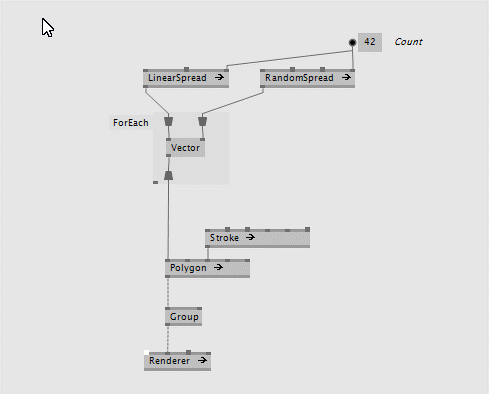 Press **ALT** while making a selction to create a frame and optionally give it a title
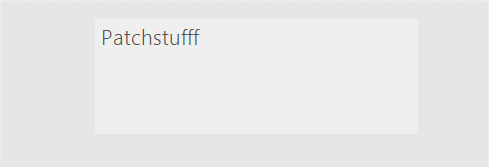 When selected, the frame shows a color-box
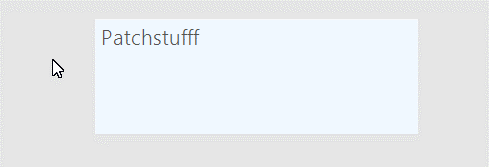 Move and size the frame
Frames are always in the very back of everything. They don’t contain any other elements and they cannot be contained in other regions. They are mere visual elements and don’t interfere with the functionality of a patch in any way.
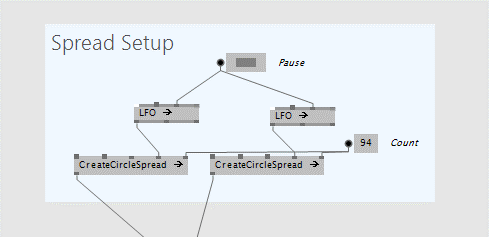 Grab the frame at the color-box to move its content along
To show/hide all frames in a patch at once, press CTRL+ALT+F. To frame a bunch of selected nodes, press ALT+F.
Screenshots
Besides being structural elements, frames also allow you to take screenshots easily and repeatably. We’re using this e.g. to automate generating screenshots for our documentation…
Here is how:
- Press the Printer button to make a screenshot, then rightclick it to see the captured file in explorer ** Alternatively press CTRL+2 to take a shot of the selected frame
- Press CTRL+5 to take screenshots of all frames in a document at once
To create a quick screenshot of an area without even creating a frame, simply press S while making a selection. This will copy the screenshot to the clipboard (so you can simply paste it into the chat or a forum reply) and also place a .png next to the current .vl document.
Recordings
Apart from single screenshots you can also record an animated gif of the area of a frame, here is how:
- Press the Record button to start a recording, the same button again or ESC to stop it ** Alternatively toggle CTRL+4 to start/stop recording the selected frame
Note that the resulting .gifs are quite large. This is a known problem that shall be fixed at some point.
Screenspace Frame
One more: In case you want to make a recording that includes panning or zooming in the patch you can create a frame in screenspace:
 Press **ALT+SHIFT** while making a selection to create a frame in screenspace


Comments:
Comments are temporarily disabled.