
Some brief statements
A quad is quadratic

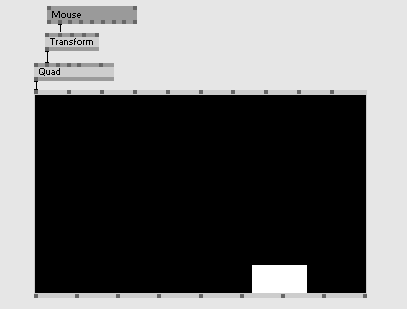
Positioning an element at the mouse position results in that element being shown at the mouse position
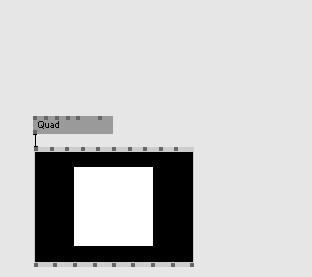
Using touch positions for positioning results in elements drawn at your finger tips
Interact with objects in world space, even in complex multi screen setups. Do that with the system cursor, not a displaced rendered cursor
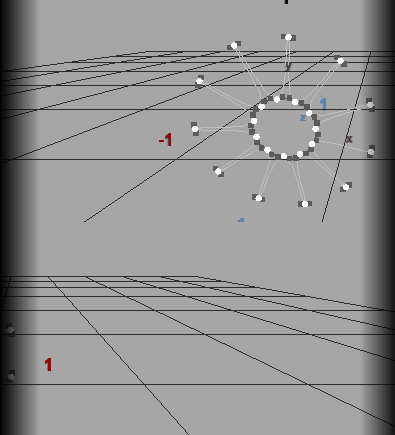
All this wasn’t something that you could take for granted. Up to now. I had to tease you first, before going into detail. If you think about the statements above, or even don’t think about it, all of the above should be just normal, no-brainers. Having a not-quadratic screen is the case 99% of the time. These cases occur that often, we should make them easier to work with.
So from now on we have
- Auto Aspect Ratiopin in the renderer*, so you don’t need to do that AspectRatio (Transform)node involving cylic graph with the 3 links*
- you can disable Auto Aspect Ratiopin and still feed your own for the more complex cases
- mouse, touch, gesture nodes are now reporting positions in our notion of projection space*, an undistorted space that didn’t get treated by the aspect-ratio transformation*. These postions are just easy to work with as you saw above.
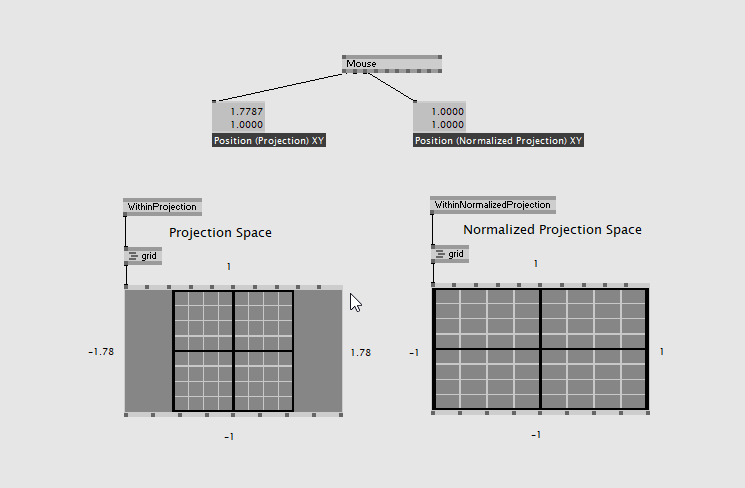
The main output of the mouse is the Position (Projection) XYpin pin, values in the case above go from (-1.78, -1) to (+1.78, +1), reflecting that the renderer is not quadratic.
All the details
What’s that Projection Space?
The underlying technology (DirectX) comes with the following spaces and transformations, to get from one space to the other:
World T. View T. Proj. T.
Object Space -> World Space -> View Space -> Proj. Space
World Transformation typically is set by the Transformpin pin at your “quad”, that takes it from object space and places that object within the world (the 3d scene). View Transformation is what you connect to the renderer and is about the position and orientation of your camera. Projection Transformation is the other input on your renderer, that is for making your scene compatible to a 2d screen. It pojects that 3d stuff onto a screen. Now, while the underlying DirectX also mixes aspect ratio into that transformation, vvvv at some point started to distinguish lense projection and aspect ratio transformation, which now feels to pay out in the end. So here is our notion of spaces and transforms:
World T. View T. **Proj. T.** Aspect Ratio T.
Object Space -> World Space -> View Space -> Proj. Space -> Norm. Proj. Space
Our renderer comes with this additional pin Aspect Ratiopin (and now also comes with that auto aspect ratio feature), treating this transformation a seperate step. Since the transformations are seperated, we got an additional space that you can think in. And this is the space you want to be in. This at least is our theory. In our projection space the aspect ratio transformation didn’t get applied yet.
Let’s look at some gif before we theorize further:
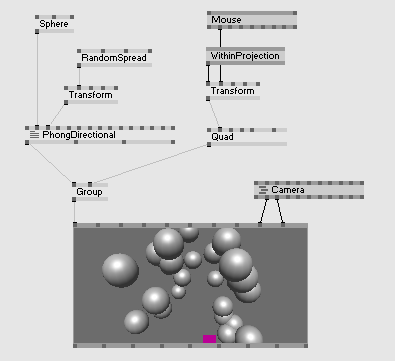
Here we see how to operate in projection space when a camera is attached. With the node WithinProjection (Transform)node we tell the system that we want to operate in projection space, which is the same as saying “do not care about the camera (don’t apply view and projection transformation as we already are in the right space)”. So the spheres get affected by the camera, the quad does not get affected by the camera. So what you take from the lesson should be that mouse pin Position (Projection) XYpin goes well together with the WithinProjection (Transform)node node. The node you only need if a camera is connected to the renderer.
Normalized Projection Space
Now, the next step the pipeline does is applying aspect ratio, which distort everything in a way that a quadratic space matches the rectangular window or viewport. This is just technical necessity as DirectX asks for that. We are now in normalized projection space. You know, that space where left & bottom border are at -1, and right & top border are at +1. The one that you learned in your first tutorial about. We always thought that this is the nicest space to think in, which is obviously not true. It feels nicely quadratic in size, which just doesn’t align to the fact, that your renderer typically is not. So it is a distorted space.
Several render passes
Here is how we still give it a raison d’être:
If you have several render passes you often just want to have a fullscreen quad textured by a previous render pass. Now how would you place a quad so that it goes from left to right border and bottom to top border. Well this is obviously easy to do in a space where these borders are always at a fixed position like in the normalized projection space.
What if you want to use and render the mouse in an early render pass, maybe with many viewports, softedge and aspect ratio settings, while actually hovering with the mouse over the final renderer, that comes with different settings? Does this align?
Well, this is a rare case where you again need to use manual aspect ratio nodes. With them you can adjust how to map to meaningful mouse positions that make sense in an earlier render pass. Actually you just need to reason about the aspect ratio of your orginal scene to make this work nicely. Note however, that in this special case - especially when softedge is involved - system cursor position and rendered cursor position don’t align anymore, as you were used to in earlier vvvversions. Note that the editors from the editing framework still work, you just need to use the Cursor node to visualize the cursor, since the system cursor is off.
Old patches and a breaking change
Patches get converted so that they now work with the new mouse positions, those in projection space. By that all patches fit well together. We are pretty sure that the benefits outweight the cons. This however still is a breaking change. If you have a patch where you don’t use the mouse position for positioning elements, but map it to something else, and experience that the new value range doesn’t feel right, you need to manually switch to the old behavior. Check the mouse node to access the now hidden Position (Normalized Window) XYpin, to access the exact old behavior. Gesture and Touch nodes come with the same pins. Old renderers get converted in a way that the Auto Aspect Ratiopin is turned off - on newly created renderers it’s turned on. Patches working with touch or gesture were complicated as they just had to correct the touch position by manually transforming it in compliance to the aspect ratio. Where with mouse you got away with showing a rendered cursor that is just displaced, touch and gesture just don’t let you do the same trick. You really expect the elements under your fingers to react. Those patches get converted in a way that they still work by using the Position (Normalized Window) XYpin, but you should consider cleaning that up by using the standard output Position (Projection) XYpin and throwing away all the unnecessary aspect ratio related tweaks and hacks.
DX11
Directx 11 doesn’t come with the features for now. There would of course be a way to do the same with DX11, but let’s see first, if the new system prooves to be easier to use for the majority of the tasks, while not failing at the more complex setups. When we have that proof of concept, it’ll be doable to copy the concepts over to DX11. Let’s wait for that first. Depending on whether new DX11 builds shall still support older vvvversions or not, the implementation gets trickier or easier. So give us some time here to figure out what route to take. Thank you!


Comments:
Comments are temporarily disabled.